
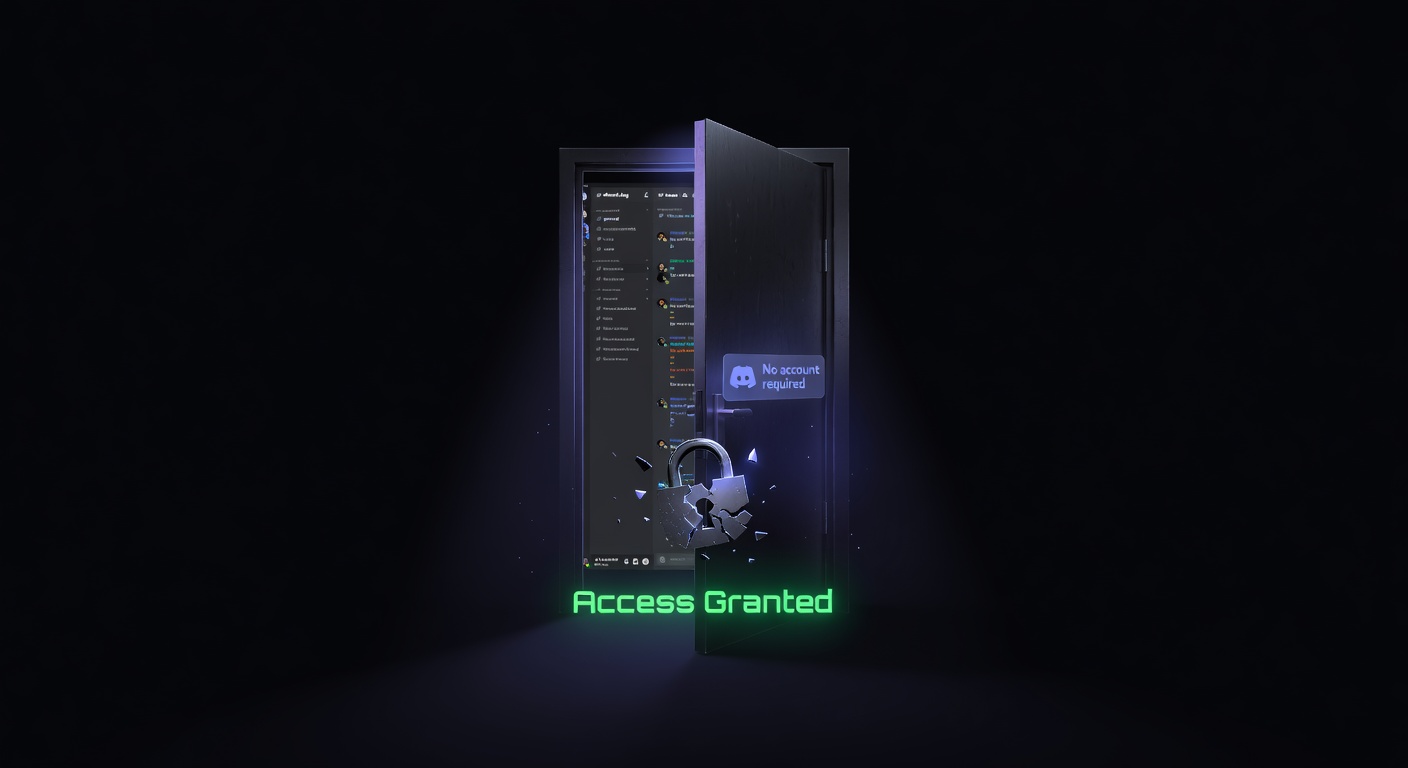
How to View a Discord Server Without Joining
Browse a Discord server's channels, messages, and members without joining. discord.dog lets you preview any server in read-only mode.
Why View a Server Without Joining?
When you receive a Discord invite link, your options are limited: join or don't join. Discord shows a basic splash screen with the server name, icon, description, and rough member count — but nothing about the actual community inside.
Is the server active or dead? Is the discussion quality high or is it constant spam? Is the topic focus what you expected? Are the moderators engaged? You can't answer these questions from an invite splash screen.
Joining to find out exposes your Discord account to all server members. Leaving immediately after is awkward. Some servers log join/leave events and moderators see churning membership. In communities where reputation matters, joining just to lurk briefly has social costs.
discord.dog's server browser solves this by giving you a read-only view of the server before you commit.
What You Can See
The amount of information available depends on whether the discord.dog bot is in that server.
Basic info (always available for any resolvable server):
- Server name, icon, and banner
- Description
- Total member count and online count
- Boost level (0–3) and boost count
- Server age (creation date from the snowflake ID)
- Features: Verified, Partnered, Discoverable, Community, etc.
- Verification level
Full browser (when the discord.dog bot is installed and channels are configured):
- Channel sidebar with all public channels organized by category
- Full message history for public channels
- Real-time new messages via WebSocket
- Member list with online status and role colors
- Scheduled events
- Active threads
Server admins choose which channels appear in the public browser. No channels are exposed by default — the admin must explicitly configure each one.
How to Do It on discord.dog
There are three ways to access a server on discord.dog:
Via invite link:
Paste any Discord invite URL directly:
discord.dog/discord.gg/examplecode
or navigate directly:
https://discord.dog/discord.gg/examplecode
discord.dog resolves the invite through Discord's API, retrieves the server info, and loads whatever is available.
Via server ID:
If you have the server's numeric ID (copy it in Discord with Developer Mode → right-click server → Copy Server ID):
discord.dog/1098765432109876543
See the Discord server ID lookup guide for help finding server IDs.
Via custom slug:
Some servers configure a clean URL on discord.dog, like discord.dog/exampleserver. These are set up by server owners through the discord.dog dashboard.
Try it now → Paste any Discord invite link at discord.dog to preview the server before joining.
Limitations
discord.dog's server browser is powerful but not unlimited.
Private servers: If a server hasn't invited the discord.dog bot and isn't publicly discoverable, only basic invite-level info is available (if any invite link exists). No channel browser, no messages.
Admin-controlled visibility: Even when the bot is present, admins control what's public. A server might have 500 channels but only expose 3 in the browser. The rest are invisible to discord.dog.
Read-only, always: The browser is strictly read-only. There is no way to send messages, react, vote in polls, or interact with the server through discord.dog. This is intentional — it's a preview tool, not a Discord client replacement.
No voice channels: Voice channels and their current occupants are not shown, even if the bot is in the server.
No DMs: Direct messages between members are private and never accessible through any server preview tool.
discord.dog vs Discord's Built-In Discovery
Discord has its own Server Discovery feature (accessible from the Explore tab), but it's quite limited:
- Only shows servers that have opted into Discovery (requires 1,000+ members and meeting several criteria)
- Shows static info only: name, icon, description, category tags
- No message preview
- No channel browser
- Requires a Discord account to use
discord.dog works for any server — not just Discovery-eligible ones — and provides actual message and channel content rather than just metadata. The tradeoff is that the full browser requires the discord.dog bot to be installed in that specific server.
For servers that have opted in to the discord.dog browser, it's a meaningful upgrade over Discord's native discovery — visitors can get a genuine feel for the community without any commitment.
For the complete feature breakdown, see the Discord server preview guide.
Try it on discord.dog
Paste a Discord ID, invite, or URL and see the public preview immediately.