
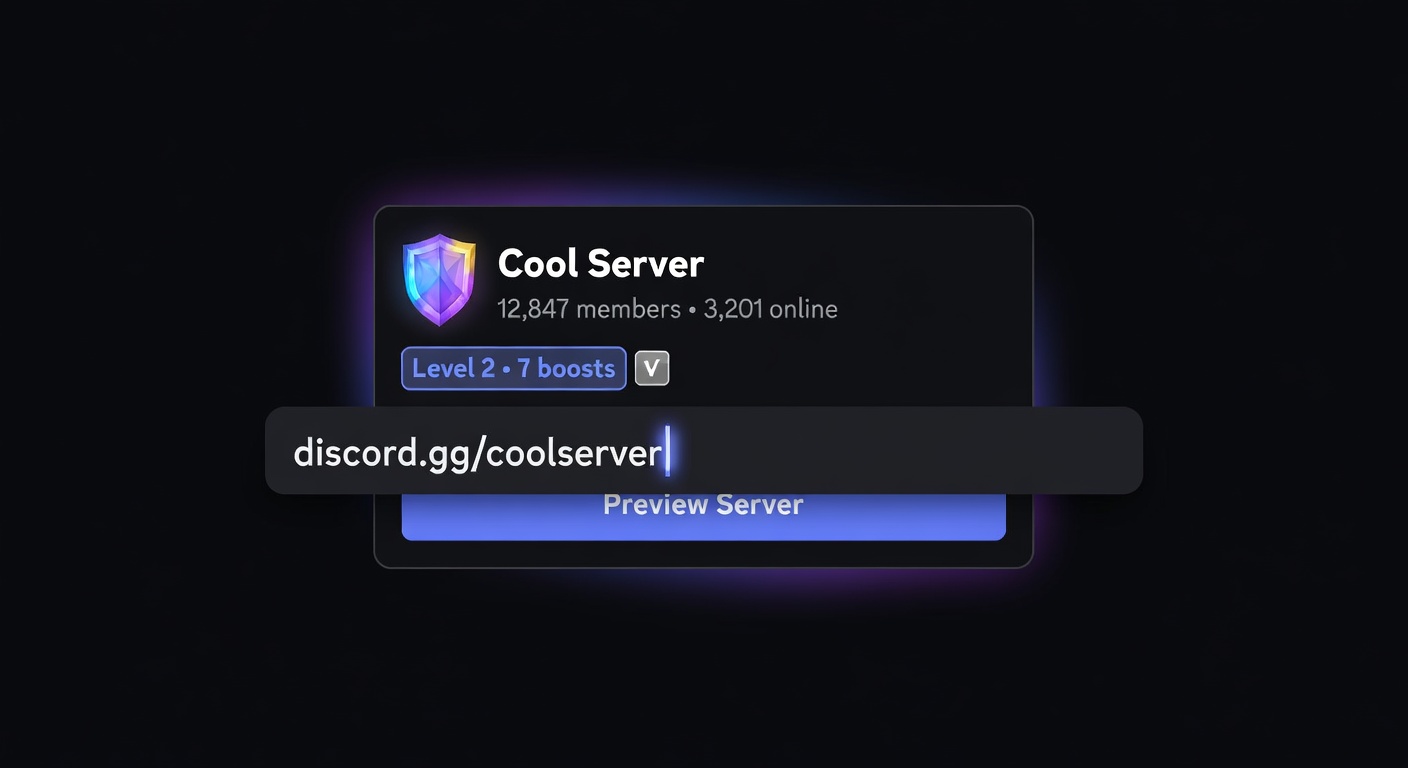
Discord Invite Preview: See Server Info Before You Click
Preview any Discord invite link — server name, icon, member count, boost level — before joining. Paste the invite at discord.dog.
What Does a Discord Invite Preview Show?
A Discord invite link (discord.gg/code or discord.com/invite/code) contains a short alphanumeric code that maps to a specific server and sometimes a specific channel. Discord's own invite splash page — what you see when you open one of these links — shows a limited set of information:
- Server name and icon
- Brief description (if the server has set one)
- Approximate member count and online count
- A "Join" button
That's it. You can't see who's in the server, what channels exist, what the community actually talks about, or how active it is. You're joining blind.
discord.dog's invite preview expands on this by resolving the invite through Discord's API and displaying the full server info — plus the channel browser if the discord.dog bot is installed in that server.
How to Preview an Invite on discord.dog
Method 1: Paste the full invite URL
Go to discord.dog/ and paste the full Discord invite link. discord.dog accepts:
discord.gg/yourcodediscord.com/invite/yourcodehttps://discord.gg/yourcode
Method 2: Navigate directly
Append the invite code to the discord.dog URL:
discord.dog/yourcode
discord.dog recognizes alphanumeric strings and tries to resolve them as invite codes. If the code resolves to a valid server, the server preview loads.
What you see:
- Server name, icon, and banner at full resolution
- Description
- Total member count and online count
- Boost level
- Server creation date (decoded from the server ID, which the invite API returns)
- Enabled features (Verified, Partnered, Community, etc.)
- Channel browser and message feed if the discord.dog bot is in the server
Try it now → Paste any Discord invite link at discord.dog to see the full preview before joining.
Invite vs Server Browser
There's a distinction between what discord.dog can do with an invite link versus what it can do when the discord.dog bot is installed in the server:
Invite resolution only:
- Server name, icon, banner, description
- Member and online counts
- Boost level and features
- Server age
This works for any valid invite link, regardless of whether the discord.dog bot is in the server.
Full browser (bot required):
- Channel sidebar with public channels
- Message feed with actual conversation history
- Member list
- Scheduled events
- Real-time updates
The full browser requires the server admin to have installed the discord.dog bot and configured public channels. Without the bot, you get the invite-level info — still more useful than Discord's own splash page, but not the complete picture.
For a server that has set up the full browser, a visitor who pastes the invite code into discord.dog gets both: the invite info and the full channel/message experience. See the Discord server preview guide for the complete feature overview.
Fake Invite Links
Not every discord.gg/code link is legitimate. Scammers and phishing campaigns frequently distribute fake or misleading Discord invites. A few things to watch for:
Invalid or expired invites: Discord invite links can expire (based on time or use count, set by the server admin). An expired invite shows an error. discord.dog will clearly indicate when an invite can't be resolved, rather than silently failing.
Mismatch between invite appearance and actual server: A scam might show you an invite that looks like it's for a legitimate community but routes to a different server once clicked. Checking the invite on discord.dog before joining shows you the actual server info — name, member count, boost level — that matches the invite code, not what the scammer told you.
Newly created servers: If an invite claims to be for an established community but the server ID decodes to a creation date from last week, that's a red flag. discord.dog shows the server creation date prominently.
Member count discrepancy: An invite claiming tens of thousands of members that resolves to a server with 12 actual members suggests the server count was faked or the invite is for the wrong server.
Previewing an invite on discord.dog takes 10 seconds and can catch obvious red flags before you click Join.
For finding a server's info using its ID rather than an invite, see the Discord server ID lookup guide.
Try it on discord.dog
Paste a Discord ID, invite, or URL and see the public preview immediately.