
Discord Server Preview: Browse Any Server's Channels and Messages Without Joining
Preview any Discord server — channels, messages, member list — without joining. See what a server is about before you commit.
Why Preview a Server Before Joining?
Joining a Discord server is a low-friction action, but it's not consequence-free. You're adding the server to your list, potentially exposing your profile to its members, and making a decision based on limited information — usually just the invite splash screen and a brief description.
Discord's own server discovery shows icons, names, and short descriptions for discoverable servers. But most servers aren't in Discovery. And even those that are only show a static preview — no messages, no member interaction, no sense of what the actual community feels like.
discord.dog's server browser changes this. If the discord.dog bot is in the server and the admin has configured public channels, you can read the actual conversation, see who's active, browse upcoming events, and get a genuine sense of the community — all without joining, without a Discord account, and without any commitment.
Try it now → Visit discord.dog and paste any server ID or invite link to see what's available.
What the Server Browser Shows
Basic Server Info (Always Available)
For any server that discord.dog can resolve — via its ID, an invite code, or a custom slug — you'll always see:
- Server name and icon
- Banner image (if the server has one)
- Description (if set)
- Member count — total members and online count
- Boost level — Level 0 through Level 3, with the number of active boosts
- Features — Verified, Partnered, Community, Discoverable, etc.
- Verification level — None, Low, Medium, High, or Highest
- Creation date — derived from the server's snowflake ID
This is available for any publicly accessible server, whether or not the discord.dog bot is installed.
Full Browser (Bot Required)
When the discord.dog bot is present in a server and channels have been configured as public:
- Channel sidebar — list of public text channels, organized by category
- Message feed — actual messages in the selected channel, with usernames, avatars, timestamps, attachments, and embeds
- Member list — online and offline members with their roles and status indicators
- Thread browser — active and archived threads in public channels
- Scheduled events — upcoming events with title, description, start time, and type (voice, stage, external)
- Role visualization — role colors and hierarchy visible in the member list
How to Browse a Server on discord.dog
There are three ways to open a server on discord.dog:
Via Server ID
Every Discord server has a unique snowflake ID. With Developer Mode enabled in Discord, right-click the server name and choose "Copy Server ID". Then:
discord.dog/1098765432109876543
discord.dog auto-detects this as a snowflake and resolves it as a guild.
Via Invite Link
Paste any Discord invite link directly into discord.dog:
discord.dog/discord.gg/coolserver
or just the invite code:
discord.dog/coolserver
discord.dog resolves the invite through Discord's invite API, which returns the server's public info. If the discord.dog bot is in that server, the full browser loads.
Via Custom Slug
Server owners who use discord.dog can set a custom slug for their server. For example, discord.dog/gaming might resolve to a specific gaming server if its owner has configured that slug.
For full instructions, see the how to view a Discord server without joining guide.
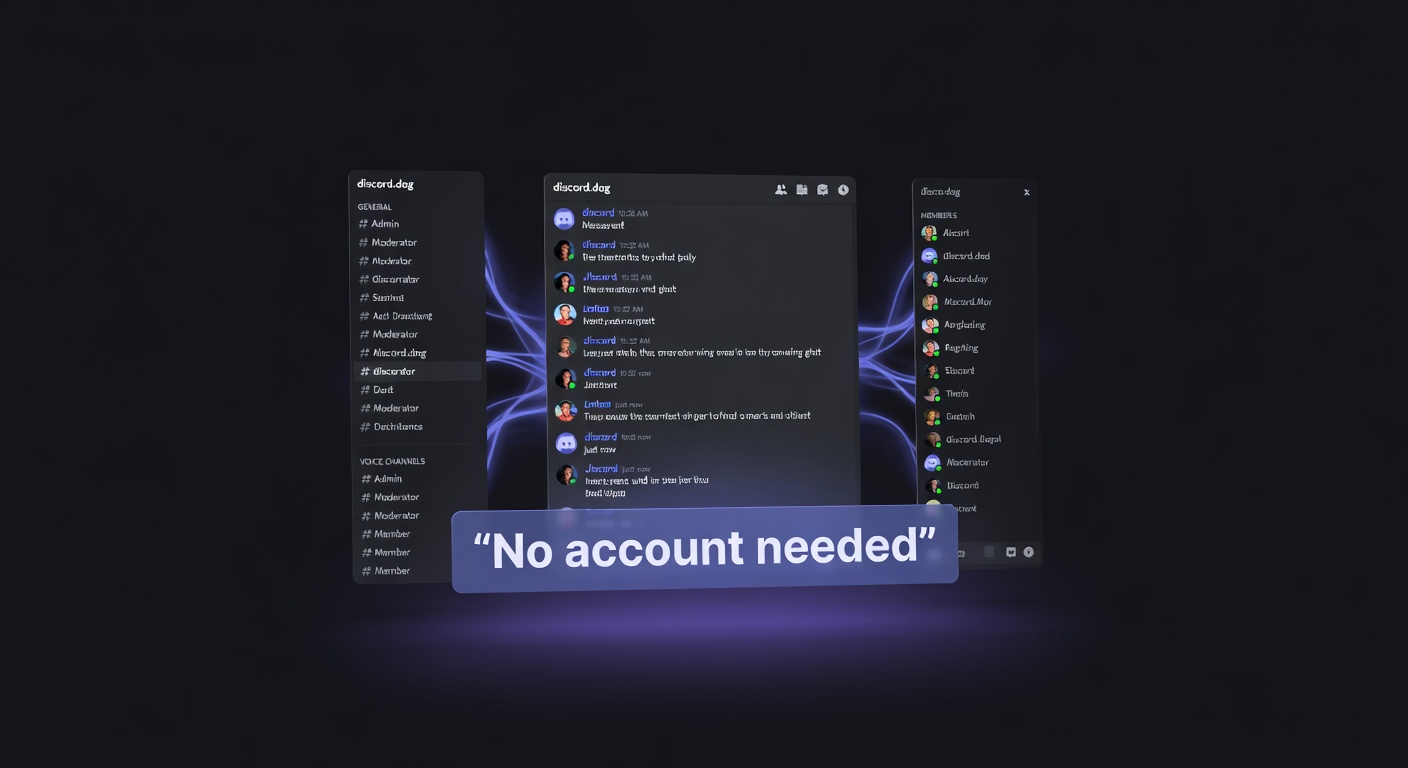
Channel Sidebar, Message Feed, and Member List
The server browser is designed as a read-only Discord interface — familiar to anyone who uses Discord, usable by anyone who doesn't.
Channel Sidebar
The left panel shows all channels the admin has made public, grouped by category. Clicking a channel loads its message feed. There's no ability to type, react, or interact — this is strictly read-only.
Channels the admin has hidden don't appear at all. From a visitor's perspective, only the public channels exist.
Message Feed
The main panel shows the message history for the selected channel. Messages include:
- User avatar and username (with role color if applicable)
- Message content, including formatted text, code blocks, and embeds
- Attached images and files
- Timestamps
- Reply context (if a message is a reply)
New messages appear in real time via WebSocket if the discord.dog bot is active in the server. You don't need to refresh to see new posts.
Pinned messages, system messages (joins, boosts), and thread starter messages are all handled. Reactions are shown but can't be added.
Member List
The right panel shows the server's member list, grouped by role (or online/offline). Each member entry shows:
- Avatar and username
- Online status indicator (green/yellow/red/grey)
- Highest-colored role (same as Discord's display)
Clicking a member in the list opens their discord.dog profile — so you can see their full public profile, including presence data, without leaving the server browser.
Server Admin Controls
The server preview feature is opt-in and admin-controlled. A server owner or admin installs the discord.dog bot through the dashboard and then configures:
- Public channels — which text channels to expose in the browser
- Hidden channels — specific channels to exclude even within public categories
- Welcome message — a custom message shown at the top of the server preview
- Custom banner — an optional banner image shown on the server's discord.dog page
No channels are public by default. The admin must explicitly enable each one. This gives full control over what visitors can see.
If a server later removes the bot or hides all channels, the server preview degrades gracefully — basic info is still shown, but the channel browser disappears.
discord.dog vs Discord's Native Preview
Discord has its own server discovery and invite preview, but both are limited in important ways.
Discord Server Discovery:
- Only shows servers that have opted in to Discovery
- Shows static info: icon, name, description, member count, category tags
- Requires a Discord account to use
- No message preview
Discord Invite Splash:
- Shows icon, name, description, online/total member count
- Available without login
- No channels, no messages, no member list
- Only works for active invites
discord.dog server browser:
- Works for any server (with bot) or basic info for any resolvable server
- Shows channels, messages, member list in real time
- No Discord account required
- Full message history for public channels
- Member profiles linkable
The main limitation of discord.dog's approach is that it requires the bot to be in the server for the full browser. Basic info is always available, but the message feed and channel list are only possible with bot presence.
FAQ
Can I see a private Discord server without being a member?
No. discord.dog can only show channels that server administrators have explicitly made public. If no channels are configured as public, you'll see basic server info but not the message feed.
Do I need a Discord account to preview a server?
No. discord.dog lets you browse server previews entirely without a Discord account or login.
Which channels are visible in a server preview?
Server admins control which channels are publicly visible on discord.dog. Only channels explicitly opted in by the admin are shown. No channels are public by default.
Is the server preview updated in real time?
Yes. When the discord.dog bot is in the server, new messages appear in real time via WebSocket without requiring a page refresh.
Can I read Discord DMs or private messages through the server browser?
No. discord.dog only surfaces content that server administrators have configured as public. Direct messages and private channels are never accessible.
Browse a server now → Visit discord.dog and paste any server ID or invite link to open the server browser.
Frequently Asked Questions
Can I see a private Discord server without being a member?
No. Private servers — those without public channels configured — require membership. discord.dog can only show channels that server administrators have explicitly made public. If no channels are configured as public, you'll see basic server info (name, icon, member count, description) but not the message feed.
Do I need a Discord account to preview a server?
No. discord.dog lets you browse server previews without any Discord account or login. You can view the channel list, read messages in public channels, see the member list, and browse scheduled events entirely as an unauthenticated visitor.
Which channels are visible in a server preview?
Server admins control which channels are publicly visible on discord.dog. By default, no channels are exposed. Admins opt in specific channels through the discord.dog dashboard. Only text channels can be made public — voice channels, private categories, and hidden channels remain inaccessible.
Is the server preview updated in real time?
Yes. When the discord.dog bot is in the server, new messages appear in real time via WebSocket. The message feed updates as new posts arrive in public channels without requiring a page refresh.
Can I read Discord DMs or private messages through the server browser?
No. discord.dog only surfaces content that server administrators have configured as public. Direct messages, private channels, and non-public server content are never accessible through discord.dog.
Try it on discord.dog
Paste a Discord ID, invite, or URL and see the public preview immediately.