
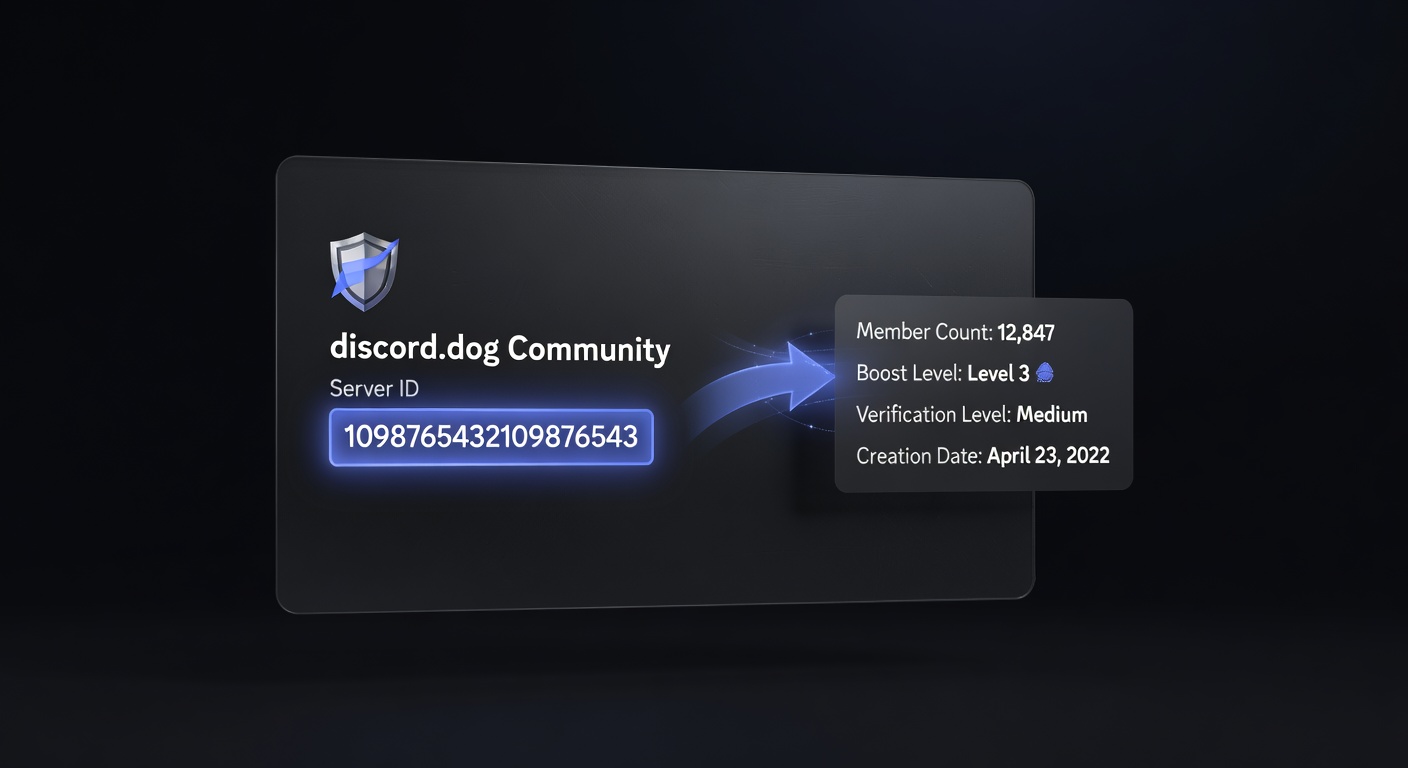
Discord Server ID Lookup: How to Find Any Server's Info
Find a Discord server's ID and look up its member count, icon, boost level, and more — no login needed with discord.dog.
What Is a Discord Server ID?
Every Discord server has a unique numeric identifier called a snowflake ID — the same format used for user IDs, channel IDs, and message IDs. A server ID looks like:
1098765432109876543
Server IDs are 17–20 digit numbers that encode the server's creation timestamp. Like user IDs, they never change after the server is created, even if the server changes its name, icon, or other settings.
Discord interchangeably calls servers "guilds" in its API, so you may see "guild ID" and "server ID" used to mean the same thing.
How to Find a Discord Server ID
With Developer Mode (if you're in the server):
- Enable Developer Mode: Settings → Advanced → Developer Mode
- Right-click the server's icon in the left sidebar
- Click Copy Server ID
That's it — the snowflake ID is now in your clipboard.
From an invite link:
Discord invite links don't directly expose the server ID in the URL, but discord.dog can resolve an invite to get the underlying server ID. Paste any discord.gg/code link into discord.dog and the server's ID is shown on the resulting server page.
From the discord.dog server page:
If you've already opened a server on discord.dog (via invite link or other means), the numeric server ID is displayed on the page alongside the server info.
Try it now → Paste any invite link or server ID at discord.dog to see the server's full information.
What a Server Lookup Returns
When you look up a server ID at discord.dog, here's what you get:
Always Available
These come from Discord's guild preview API, which works for any discoverable server or any server that can be reached via invite:
- Name — current server name
- Icon — server icon at full resolution
- Banner — server banner image (if set)
- Description — the server's public description
- Member count — total member count
- Online count — members currently online
- Boost level — Level 0 through 3
- Active boosts — current number of active Nitro boosts
- Features — enabled features (Verified, Partnered, Discoverable, Community, etc.)
- Verification level — None through Highest
- Creation date — decoded from the snowflake ID
Available When Bot Is Present
If the discord.dog bot is installed in the server:
- Channel list — all public text channels with their names and categories
- Message feed — live messages in public channels
- Member list — online members with roles and status
- Role list — all roles with colors and hierarchy
- Scheduled events — upcoming events with details
- Thread browser — active and archived threads
Server admins control which channels appear in the public browser. See the Discord server preview guide for the full browser breakdown.
discord.dog Server Preview
The server lookup on discord.dog is one half of the platform's server feature. The other half is the full server browser — a read-only Discord-like interface that lets you read messages and browse channels without joining.
To get the full browser experience, the discord.dog bot needs to be in the server and public channels must be configured by an admin. Many servers set this up as a way to let potential members preview the community before committing.
For the basic lookup — member count, boost level, creation date, description — no bot installation is needed. Any server that Discord makes findable via invite or guild preview API is accessible.
Checking Server Age
Like user accounts, server creation dates are encoded in the server ID. A server created in 2016 has a much lower ID than one created in 2024. discord.dog shows the creation date and age prominently on every server page.
This is useful for verifying claims about a server's history. If someone says a server is "years old" and has a community history, the creation date derived from the ID gives you an objective check.
For a deeper look at how Discord IDs encode timestamps, see the Discord snowflake ID guide.
For the full server browsing experience including channels and messages, see how to view a Discord server without joining.
Try it on discord.dog
Paste a Discord ID, invite, or URL and see the public preview immediately.