
How to Find Discord Servers to Join in 2026
A complete guide to finding Discord servers — from Discord's built-in discovery to third-party directories, invite links, and previewing servers before you join.
Finding the Right Discord Server
Discord hosts millions of active servers spanning every topic imaginable — gaming, programming, art, music, anime, cryptocurrency, academic study groups, professional networking, and niche hobby communities. The challenge isn't that servers don't exist for your interests; it's finding the right one among the noise.
This guide covers every reliable method for discovering Discord servers in 2026, along with tips for evaluating servers before committing your time.
Discord's Built-in Server Discovery
Discord has a native server discovery feature accessible directly from the app. Click the compass icon at the bottom of your server list (left sidebar) or use the "Explore Discoverable Servers" option.
How Discovery Works
Server Discovery surfaces servers that have opted into being publicly listed. Server owners enable this in Server Settings → Discovery. Discord requires servers to meet minimum thresholds before they can be listed:
- At least 1,000 members
- Server must be at least 8 weeks old
- Must meet Discord's community guidelines
- Must have Community features enabled
Searching and Filtering
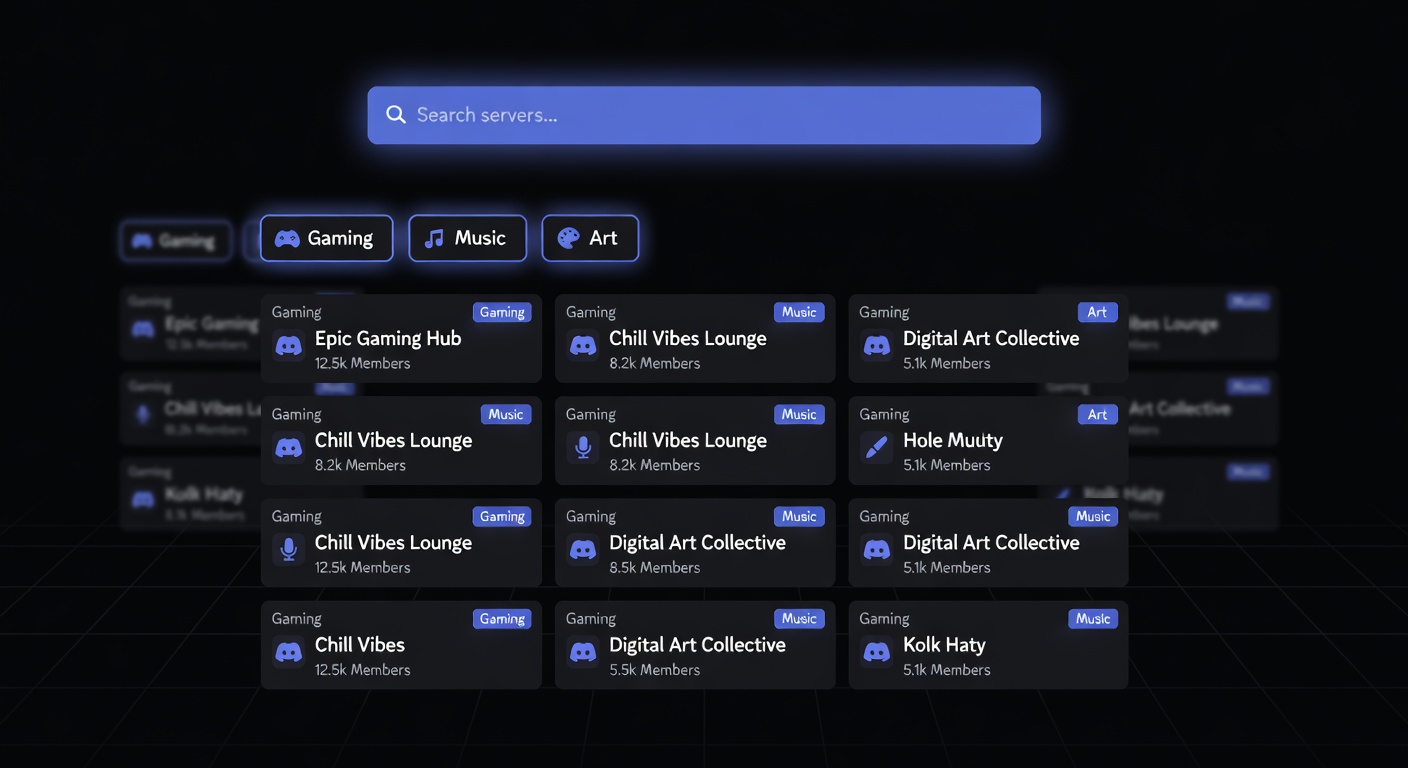
The Discovery page supports keyword search and category browsing. Categories include Gaming, Entertainment, Education, Science & Tech, Music, and more. Results can be sorted by relevance or member count.
Discovery is the safest way to find servers because Discord vets listed servers for community guideline compliance. The trade-off is that smaller or newer servers don't appear here.
Limitations
Discovery only shows servers that meet Discord's size and age requirements. Many excellent communities — especially niche or newly formed ones — aren't listed. If you're looking for a small, focused community, you'll need to look beyond Discovery.
Third-Party Server Directories
Several websites maintain searchable databases of Discord servers. These directories list servers of all sizes, including those too small for Discord's built-in Discovery.
Disboard (disboard.org)
One of the largest and oldest Discord server directories. Servers are listed with descriptions, tags, member counts, and user reviews. Disboard uses a "bump" system where server members can bump their server to the top of listings periodically.
Strengths: Huge database, category filters, language filters, review system. Weaknesses: Bump system means frequently bumped servers dominate listings regardless of quality.
top.gg
Originally known as Discord Bot List, top.gg expanded to include server listings alongside its bot directory. Servers are listed with descriptions, tags, and voting systems.
Strengths: Active community, integrated bot listings, voting system surfaces popular servers. Weaknesses: Primarily focused on bots; server listings are a secondary feature.
discord.me
A directory focused specifically on server discovery. Supports search by keyword, category, and language. Servers can be listed with custom descriptions and banners.
Other Directories
- Discadia — clean interface with category browsing
- Discord Server List — straightforward directory with search
- Discords.com — another listing site with tag-based browsing
Reddit and Social Media
Many of the best Discord servers are found through communities that already exist on other platforms.
Subreddits frequently have associated Discord servers linked in their sidebar or pinned posts. If you're interested in a topic, find the relevant subreddit and look for a Discord link. Examples:
- r/learnprogramming has a Discord for coding help
- r/gamedev communities often maintain Discord servers
- Game-specific subreddits almost always link to their Discord
You can also search Reddit directly: site:discord.gg {topic} in Google, or search within Reddit for "discord server" in topic-specific subreddits.
Twitter / X
Creators, streamers, and community leaders often share their Discord invite links in their Twitter bio or pinned tweets. If you follow someone whose community you want to join, check their profile.
YouTube and Twitch
Content creators frequently promote their Discord servers in video descriptions, stream panels, and channel pages. These communities tend to be active because they're built around an existing audience.
Game and Platform Communities
Official Game Servers
Most major games have official Discord servers run by the development studio. These are usually linked on the game's website, Steam page, or social media. Official servers are a good starting point for finding the game's community, even if they're often too large for meaningful conversation. Smaller community-run servers frequently advertise in the official server's channel for that purpose.
Steam
Steam game pages sometimes link to Discord servers in the community hub or developer announcements. Check the game's community section for Discord invite links.
GitHub
Open-source projects frequently maintain Discord servers for contributor discussion and support. Check the project's README or repository description for a Discord link.
Evaluating a Server Before Joining
Not all servers are worth your time, and some may be outright problematic. Before joining, check these indicators.
Member Count vs. Active Members
A server with 50,000 members but only 10 online is a ghost town. Look for servers where the online-to-total ratio is reasonable. A healthy ratio is 5-20% of members online at any given time, depending on the server's timezone spread.
Server Description and Rules
Well-run servers have clear descriptions, organized rules, and defined channel purposes. If a server has no rules channel or its description is empty, moderation may be lax.
Verification Level
Discord servers have verification levels (None, Low, Medium, High, Highest) that determine what users need to do before chatting. Higher verification levels indicate the server takes moderation seriously.
Preview Without Joining
discord.dog lets you preview any Discord server without joining it. Enter the server ID or invite code at discord.dog to see:
- Server name, icon, and banner
- Member count and online count
- Boost level and features
- Description and verification level
- Channel list (for servers with the discord.dog bot)
This gives you a good picture of the server before committing. See the server preview guide for a full walkthrough.
You can also use the invite checker tool to validate invite links and see server details before clicking join.
Invite Link Safety
Valid Invite Links
Discord invite links follow these patterns:
discord.gg/codediscord.com/invite/codediscordapp.com/invite/code
Any other URL pattern claiming to be a Discord invite is suspicious.
Red Flags
Be cautious of servers that:
- Ask you to "verify" by clicking external links immediately after joining
- Require you to download files or run programs
- Promise free Nitro, gift cards, or cryptocurrency in exchange for actions
- Have bot-only welcome messages directing you to external sites
- Ask for personal information beyond a basic introduction
What to Do After Joining
Read the rules channel first. Check the member list for active moderators. Browse a few channels to gauge the community tone. If anything feels off, leave. You can always rejoin a server, but you can't undo actions taken based on social engineering.
Server Limits
Discord imposes limits on how many servers you can join:
| Account Type | Server Limit |
|---|---|
| Free | 100 servers |
| Nitro | 200 servers |
If you're at the limit, you'll need to leave a server before joining a new one. Consider periodically auditing your server list and leaving inactive or low-value servers.
Using discord.dog for Server Discovery
discord.dog provides several tools that complement server discovery:
- Server preview — see a server's details without joining, using the server ID or invite code
- Server browser — for servers with the discord.dog bot installed, browse channels, messages, and member lists in a read-only view
- Invite checker — validate an invite link and see the destination server's info before joining
- Server ID lookup — find details about any server using its snowflake ID
These tools help you make informed decisions about which servers to join. Visit discord.dog and enter a server ID or invite code to get started, or read the server preview guide for more details.
Frequently Asked Questions
How do I find Discord servers for a specific topic?
Use Discord's built-in Server Discovery (the compass icon in the left sidebar) and search by keyword. You can also try third-party directories like Disboard, top.gg, or discord.me, which categorize servers by topic and let you filter by language, size, and activity.
Can I preview a Discord server before joining?
Yes. discord.dog lets you preview any Discord server by entering its ID or invite link. You can see the server name, icon, member count, description, and channels — without joining or even having a Discord account. See the server preview guide for details.
How many Discord servers can I join?
Free Discord accounts can join up to 100 servers. Discord Nitro subscribers can join up to 200 servers. If you've reached the limit, you'll need to leave a server before joining a new one.
Is it safe to join Discord servers from unknown invite links?
Exercise caution. Most servers are harmless, but some may contain inappropriate content, scams, or malware links. Check the server's description and member count before joining, preview it using discord.dog's server preview tool, and avoid servers that ask you to click suspicious links or download files immediately after joining.
Try it on discord.dog
Paste a Discord ID, invite, or URL and see the public preview immediately.