
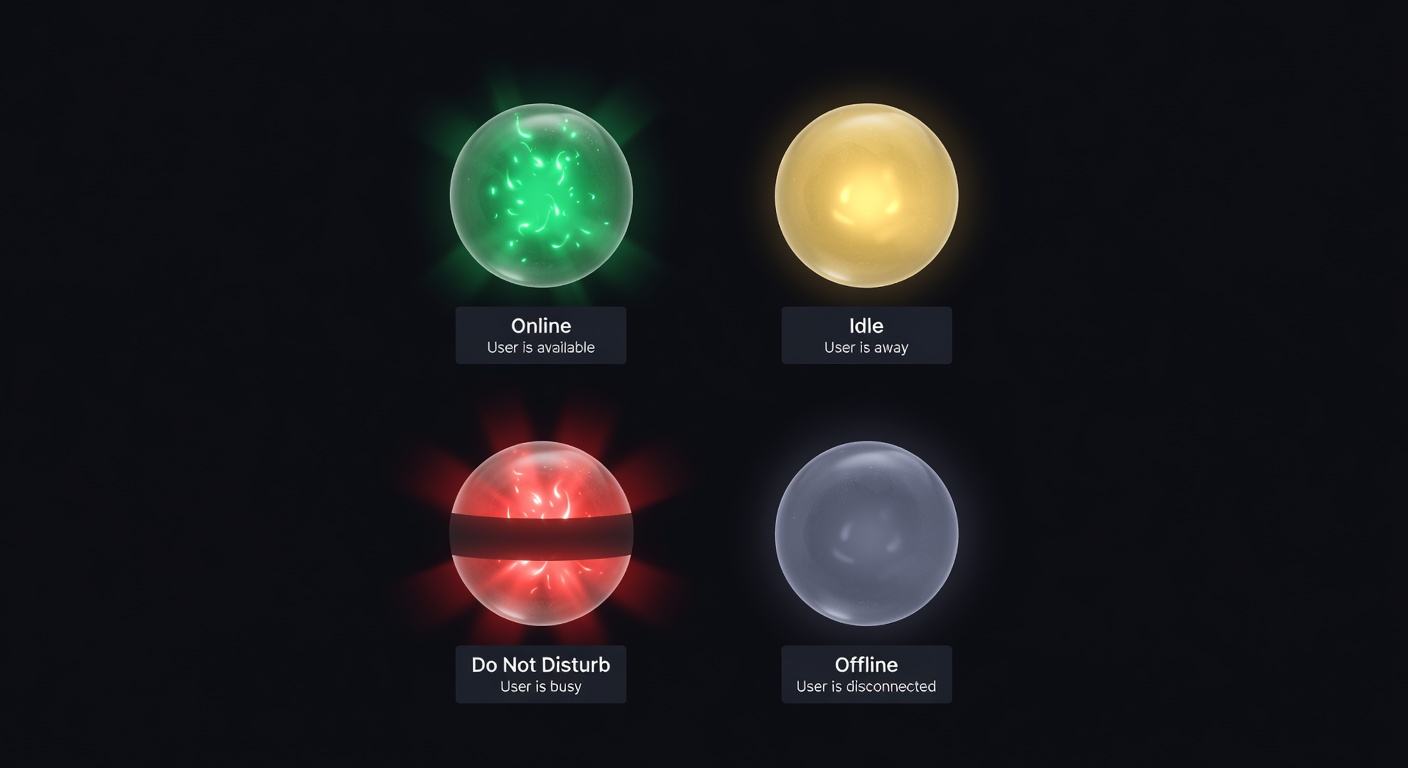
Discord Status Colors Explained: Online, Idle, DND, and Offline
What do the colored rings on Discord profiles mean? A complete guide to Discord's four status indicators and what they reveal.
The Four Discord Status Colors
Every Discord user has a status indicator — a colored circle that appears over the bottom-right of their avatar in servers, DM lists, and profile panels. There are four states, each with a distinct color and meaning.
Understanding these indicators tells you whether someone is reachable right now, temporarily away, actively avoiding notifications, or not connected at all.
Online (Green)
A solid green circle means the user is connected to Discord and actively using it. Discord defines "active" as having interacted with the app recently — typing, clicking, switching channels. If the app has been open but untouched for a while, Discord automatically shifts the status to Idle.
Green means they'll likely see a message quickly. It's the default state when someone opens Discord and starts using it.
Users can also manually set their status to Online to override Idle or DND.
Idle (Yellow)
A yellow crescent (half-moon) icon indicates the user is connected but hasn't interacted with Discord recently. Discord switches users to Idle automatically after roughly 5–10 minutes of inactivity, even if the app is open and visible on their screen.
Common scenarios for Idle:
- The user is at their computer but focused on something else
- The Discord window is open but minimized or in the background
- The mobile app is running but the phone is in their pocket
- They stepped away from their desk briefly
Idle does not mean they're ignoring you — they may simply be mid-task and not watching Discord. Response time is unpredictable in this state.
Do Not Disturb (Red)
A red circle with a minus sign (sometimes called DND) means the user has manually set their status to Do Not Disturb. Notifications — pings, message alerts, call sounds — are suppressed for them. Discord won't pop up alerts or play sounds.
DND is always intentional. It doesn't switch automatically. The user made a deliberate choice to suppress interruptions, usually because they're working, studying, gaming, or otherwise occupied.
You can still message someone on DND — the message will be there when they check. But they won't receive a notification sound or popup. If something is time-sensitive, other contact methods may be more reliable.
Offline / Invisible (Grey)
A grey circle means the user is either not connected to Discord, or they've manually set themselves to Invisible. From outside the account, these two states are indistinguishable — Discord broadcasts the same "offline" status in both cases.
Truly offline: The user has Discord closed on all devices. No active connection to Discord's servers.
Invisible: The user is connected and using Discord normally. They receive messages and notifications as usual — they're just hidden. Friends, server members, and bots all see them as offline. The user chose this to browse Discord without appearing online.
There is no reliable way to tell whether a grey status is genuine offline or invisible. Some users stay invisible by default as a privacy preference.
Mobile Status
Discord displays a slightly different indicator — a small mobile phone icon — when a user is connected only via the mobile app and not the desktop client. The color (green, yellow, red, grey) still applies; the phone icon just clarifies the device.
A user can be online on mobile only, desktop only, both, or web browser — Discord shows all active connections. discord.dog surfaces the client information alongside the status color, so you can see whether someone is on desktop, mobile, web, or multiple devices simultaneously.
Checking Status Without Discord
Discord only shows these status indicators inside the app. If you don't have a Discord account, or you want to check someone's status without opening Discord, discord.dog surfaces the same information:
- Go to
discord.dog/{userId}ordiscord.dog/{username} - The status indicator shows the user's current status color
- Client information (desktop/mobile/web) is shown alongside
- If they're on Spotify or playing a game, that appears below the status
Status updates in real time via WebSocket — you don't need to refresh the page. See the Discord status tracker guide for a full breakdown of how real-time presence tracking works on discord.dog.
Check any user's status now → Visit discord.dog and look up any user ID or username to see their live status.
Try it on discord.dog
Paste a Discord ID, invite, or URL and see the public preview immediately.