
How to See What Someone Is Listening to on Discord (Without Being Friends)
See anyone's Spotify activity on Discord — current song, artist, album art, and progress bar — without friending them. Try discord.dog.
How Discord Shows Spotify Activity
Discord has native Spotify integration. When a user connects their Spotify account in Discord's Settings → Connections and listens to music through the Spotify desktop app (with the Discord desktop app running), Discord picks up the playback data and broadcasts it as a presence activity.
This Spotify presence event contains:
- Track title
- Artist name(s)
- Album name
- Album artwork URL
- Track start time (as a Unix timestamp)
- Track end time (calculated from duration)
Discord uses this to show a "Listening to Spotify" indicator on the user's profile and in the member list. Anyone in a shared server can see it — in the Discord app. Friends can also see it in their friends list.
The limitation: you can only see it in the Discord app, and only if you share a server with the person or are friends. discord.dog removes both restrictions.
What discord.dog Shows for Spotify
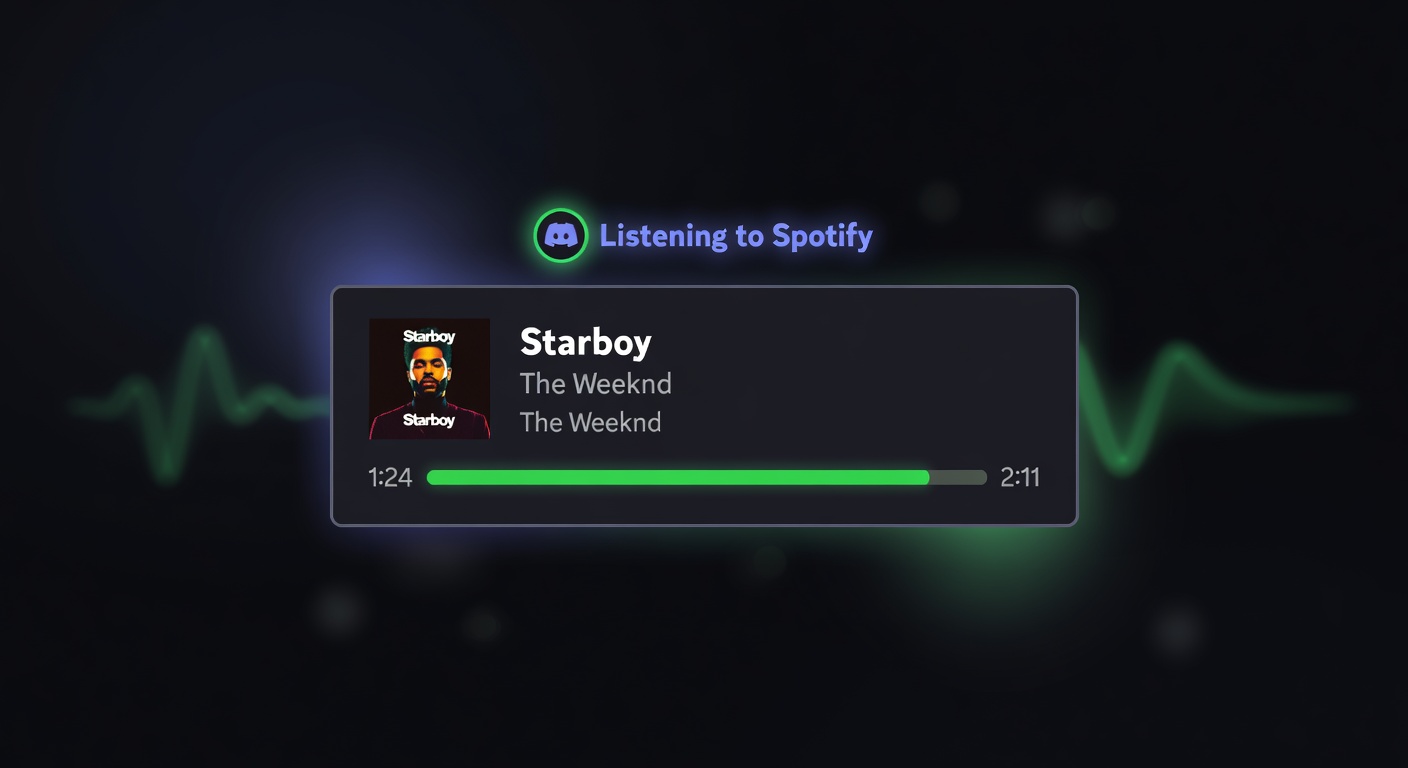
discord.dog surfaces the full Spotify activity from a user's presence data and renders it as a card on their profile page:
- Album artwork — the full-size album art image
- Track title — the currently playing song
- Artist name — primary artist and any features
- Album name — the album or single the track is from
- Progress bar — a live indicator of the current position in the track
You don't need to be friends with the person or share any server. As long as discord.dog has access to their presence data (via its own bot in a shared server, or via the Lanyard fallback), you can see their Spotify activity.
Try it now → Look up any Discord user at discord.dog to see if they're currently listening to something on Spotify.
Real-Time Progress Bar
The progress bar is the feature that makes discord.dog's Spotify tracking genuinely useful rather than just informational. It doesn't require the server to push updates every second — instead, discord.dog calculates the current position mathematically.
Here's how it works:
- Discord's presence data includes the track's
starttimestamp (when playback began) and the track's totalduration - discord.dog computes
elapsed = now - starton the client - The progress bar renders as
elapsed / durationpercent filled - A JavaScript interval updates the display every second
The result is a smoothly advancing progress bar that accurately reflects the current position in the song — without any server communication after the initial data load. When the track ends and a new one starts, the WebSocket pushes a new presence event with the new track's data.
This is the same technique Discord uses in its own Spotify widget.
Do They Know You're Watching?
No. Viewing a profile on discord.dog is anonymous. Discord does not expose any mechanism for users to know who is viewing their public profile or presence data.
The Spotify activity is already being broadcast by Discord to every server the user shares with the discord.dog bot. discord.dog simply reads that broadcast and displays it on a web page. The target user receives no notification of any kind.
This is fundamentally the same as someone seeing your Spotify status in a shared Discord server — you know others in that server can see it, but you don't get notified when they look.
Why This Isn't Always Visible
Spotify tracking only works when several conditions are met:
The user must have Spotify connected to Discord. This is a manual setup step in Settings → Connections → Spotify. If they haven't done this, Discord has no Spotify data to broadcast.
The user must be using the Spotify desktop app. Discord picks up Spotify playback by detecting the Spotify desktop client process. If the user is listening on mobile, web player, or a smart speaker, Discord typically doesn't detect it.
The user must have Discord's desktop app running simultaneously. Discord needs to be open on the same computer as Spotify to pick up the activity and broadcast it to the Gateway.
The user must share a server with the discord.dog bot, or be in the Lanyard Discord server. If neither is true, discord.dog has no source for their presence data.
If any of these conditions aren't met, the Spotify card won't appear. Instead, you'll see either other activity data (game, custom status) or no presence section at all.
For a broader look at all presence data types — status colors, game activity, custom status — see the Discord status tracker guide.
Try it on discord.dog
Paste a Discord ID, invite, or URL and see the public preview immediately.