
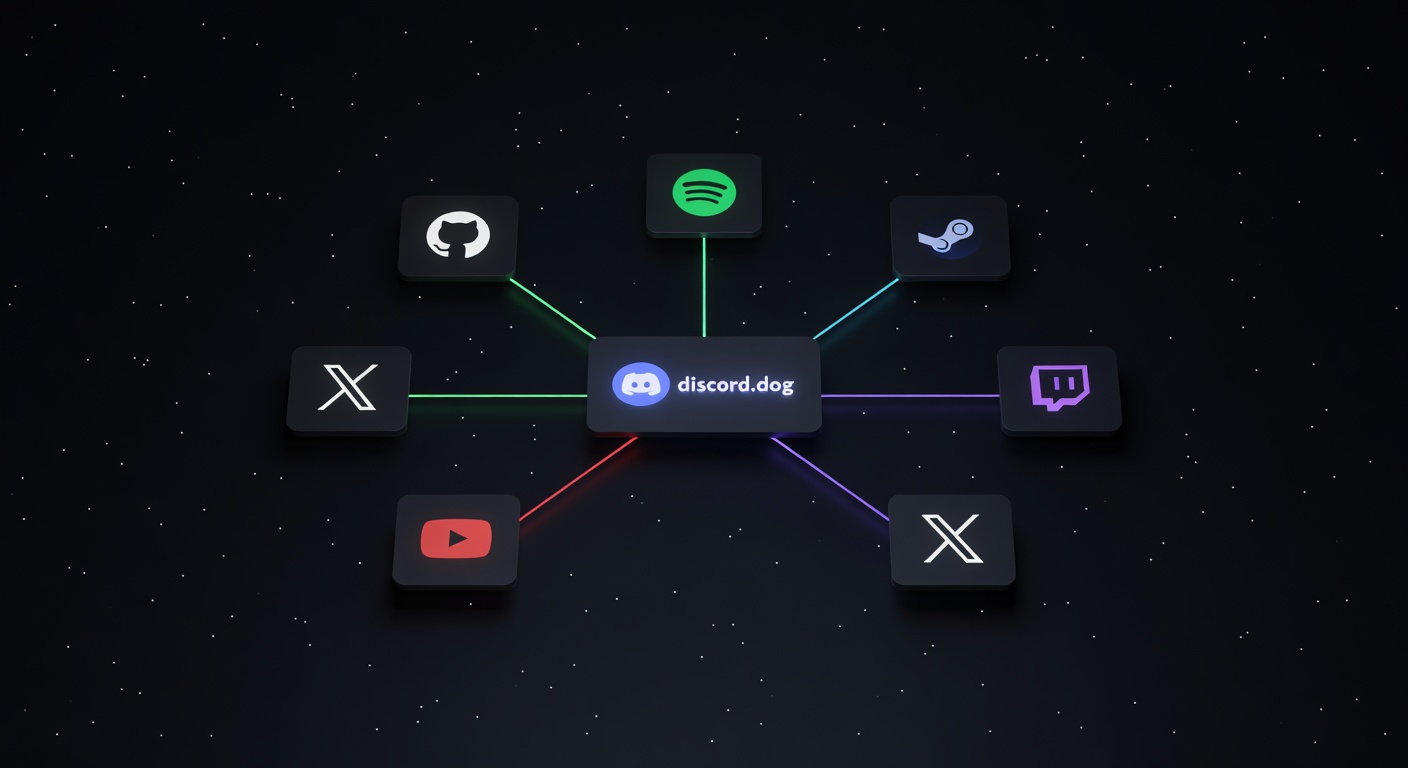
How to See Discord Connections: GitHub, Spotify, Steam and More
View any Discord user's linked accounts — GitHub, Spotify, Steam, Twitch, and more — on discord.dog without being friends.
What Are Discord Connections?
Discord connections are third-party accounts that a user links to their Discord profile. Once linked, these connections can optionally be displayed publicly on the user's profile — showing other Discord users their external presence across the web.
Connections serve two purposes: social proof (showing you're the same person on multiple platforms) and feature integration (Spotify connections enable rich Spotify presence, for example). They're voluntary — users decide whether to link an account and whether to show it publicly.
Which Platforms Can Be Linked?
Discord supports connections to a wide range of platforms:
Developer and code-related:
- GitHub
- GitLab
Gaming:
- Steam
- Xbox Live
- PlayStation Network
- Battle.net
- Riot Games (League of Legends, Valorant)
- Epic Games
Streaming and content:
- Twitch
- YouTube
Music:
- Spotify
Social:
- Twitter / X
- TikTok
Other:
- PayPal
- eBay
- Crunchyroll
The list grows as Discord adds new integrations. Each connection shows the username on that platform, and some (like GitHub and Twitch) link directly to the profile on that platform.
How to See Someone's Discord Connections
In Discord itself, connections are visible on user profiles — but only if you share a server with the person or are friends. For anyone outside your social graph, connections are hidden.
discord.dog removes that requirement.
To view connections on discord.dog:
- Get the user's Discord ID or username
- Go to
discord.dog/{userId}ordiscord.dog/{username} - Scroll to the Connections section on their profile
Each linked connection that the user has set to display publicly appears with:
- The platform icon and name
- Their username on that platform
- A direct link to their profile on that platform (for platforms that have public profiles)
Try it now → Look up any Discord profile at discord.dog to see their linked accounts.
Why Connections Aren't Always Visible
Not every Discord user shows all their connections. There are several reasons a connection might be absent:
The user hasn't linked it. Connections must be manually added in Discord's Settings → Connections section. If someone hasn't connected their GitHub, there's nothing to show.
The user has it linked but hidden. Each connection has a toggle: "Display on profile." If that toggle is off, the connection doesn't appear on the public profile. discord.dog respects this setting — hidden connections are not shown.
The user has OAuth'd with discord.dog. If the target user has logged in to discord.dog using Discord OAuth, discord.dog can access their full connections list (with their consent). This may reveal connections they've set to hidden in Discord, since discord.dog requests the connections OAuth scope. However, this is only the case for users who have explicitly logged in to discord.dog.
Discord's API restrictions. Some connection types are treated differently by Discord's API and may not be returned in certain contexts.
discord.dog Connection Data
discord.dog sources connection data from two places:
Discord's profile endpoint: Discord's undocumented profile API returns the full connections array for a given user, including connections the user has chosen to display publicly. This is the same data Discord's own app uses to render profile cards.
OAuth consent: If the user has logged in to discord.dog with the connections OAuth scope, discord.dog stores their connection list. This data is refreshed periodically to stay current.
The result is that discord.dog typically shows the complete set of public connections — the same list Discord would show to a stranger viewing the profile in-app.
For users whose Spotify connection is active, the Connections section on their discord.dog profile links directly to their Spotify profile — and the live Spotify tracking (current song, progress bar) appears in the presence section if they're currently listening. See the Discord Spotify tracker guide for details.
For users with a GitHub connection, the link goes directly to their GitHub profile. Combined with the account creation date and badges, this is useful for verifying that someone in a development community is who they say they are.
See the full Discord profile viewer guide for everything else discord.dog shows beyond connections.
Try it on discord.dog
Paste a Discord ID, invite, or URL and see the public preview immediately.