
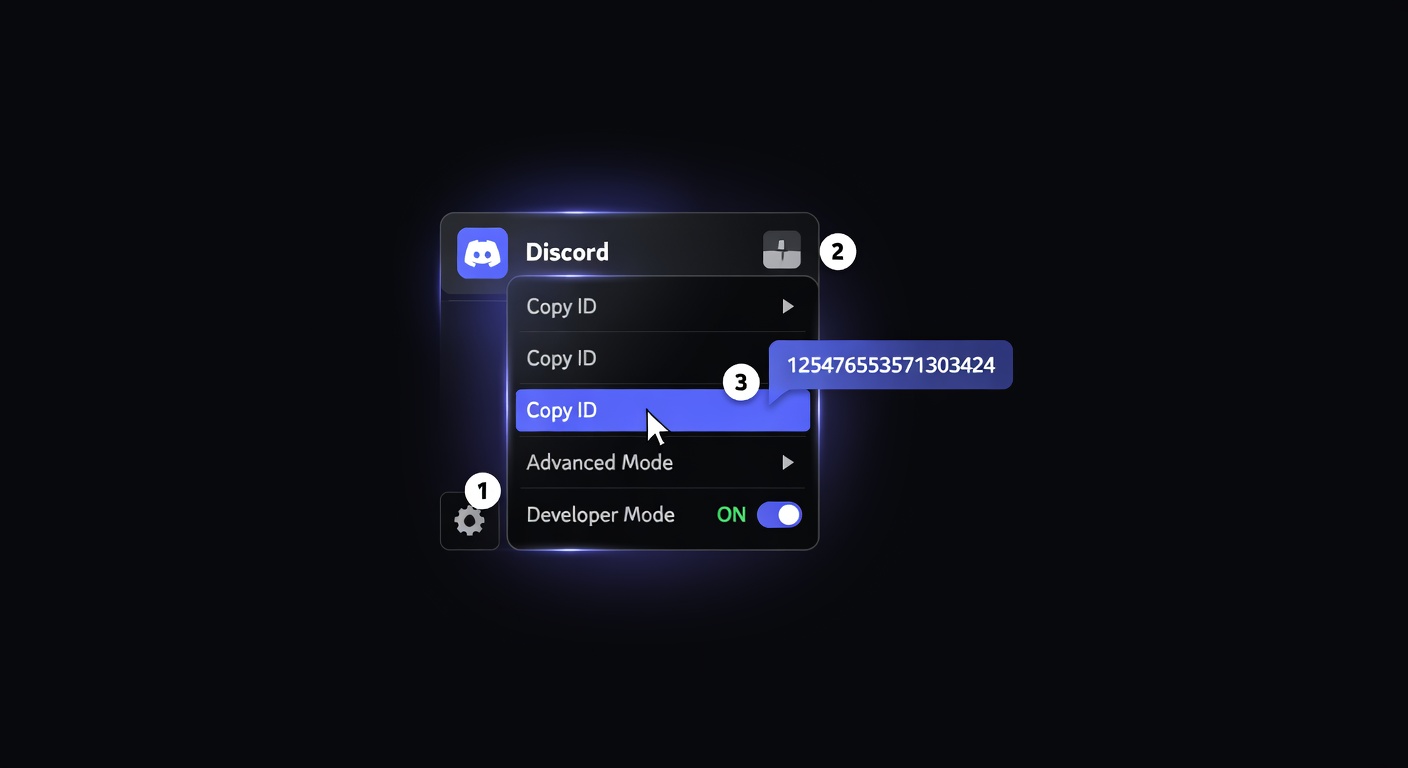
How to Find a Discord User ID in 3 Steps
A quick guide to finding any Discord user's ID using Discord's developer mode or discord.dog's username lookup.
Method 1: Discord Developer Mode
Developer Mode is a hidden Discord setting that adds extra right-click options, including the ability to copy user, server, channel, and message IDs.
On Desktop (Windows, Mac, Linux):
- Open Discord
- Go to User Settings (click the gear icon near your username at the bottom left)
- Navigate to Advanced
- Toggle on Developer Mode
- Close Settings
Now, right-click any username anywhere in Discord — in a server, in a DM list, in a message — and you'll see a Copy User ID option at the bottom of the context menu. Click it to copy the ID to your clipboard.
The ID will look something like: 125476553571303424
On Mobile (iOS / Android):
- Open Discord and go to User Settings (tap your avatar in the bottom bar)
- Tap Appearance
- Scroll down and enable Developer Mode
To copy an ID on mobile: tap and hold on a username to open the user context menu, then tap Copy User ID.
Tip: Developer Mode also lets you copy server IDs (right-click server icon), channel IDs (right-click channel name), and message IDs (right-click or long-press a message). All useful for discord.dog lookups.
Method 2: Right-Click on Username in a Server
Once Developer Mode is enabled, the most common workflow is:
- Find the user in a server's member list or in a message thread
- Right-click their name (or long-press on mobile)
- Click Copy User ID
This works for any user you can see — you don't need to be friends with them, and they don't need to be online. If their username is visible anywhere in Discord with Developer Mode on, you can copy their ID.
Your own ID: Go to Settings → My Account. With Developer Mode on, there's a small icon or option to copy your own user ID. Alternatively, right-click your own username in any server.
Method 3: Via discord.dog
If you know someone's Discord username but not their numeric ID, discord.dog can find it for you:
- Go to
discord.dog/{username}— for example,discord.dog/alice - discord.dog searches its database of indexed users for that username
- If found, the profile loads and the numeric user ID is displayed on the page
This is useful when:
- You have a username from a social profile link or bio
- You're not in the same server as the person and can't right-click them
- You want to look up your own ID without opening Discord
Try it now → Visit discord.dog and search by username if you don't have the numeric ID handy.
What to Do With a User ID
Once you have a Discord user ID, here's what you can do with it:
Look up their profile on discord.dog:
discord.dog/125476553571303424
See their avatar, bio, badges, live status, connections, and account age — without a Discord account.
Check their account age: The creation date is encoded in the ID itself. discord.dog shows it automatically, or you can decode it manually using the Discord snowflake ID formula.
Run a full ID lookup: The Discord ID lookup guide covers everything that a user ID lookup returns and how discord.dog compares to other lookup tools.
Use it in Discord bots: If you're building a bot, user IDs are the stable reference for users. Usernames can change; IDs never change.
Reference in reports: When reporting a user to Discord Trust & Safety or a server moderation team, include the user ID. It's the unambiguous identifier that can't be changed or spoofed.
Try it on discord.dog
Paste a Discord ID, invite, or URL and see the public preview immediately.